Hello, how can we help you better?
Override Sending SMS Messages Outside of Business Hours
This tutorial shows how to override the default restricted settings to allow sending SMS messages outside of business hours using AORforms when YOUR business needs flexibility.

Written by Cheryl Wakeam
Updated over
3 minutes ago
The Telephone Consumer Protection Act (TCPA) is one of the most important regulations for businesses that use calls or text messages for marketing and electronic communications with clients. Non-compliance can lead to hefty fines and lawsuits. At AORforms, we’ve introduced new features to help you stay compliant effortlessly—especially when it comes to sending messages during allowable hours. This tutorial shows how to override the default restricted settings to allow sending SMS messages outside of business hours using AORforms when YOUR business needs flexibility.
Go to dev.aorforms.com
1. Applies when sending by SMS
Business Hour Restrictions automatically prevent sending messages outside 8:00 AM – 8:00 PM and on weekends based on the recipient’s local time. These restrictions will apply when sending a form via SMS or both by SMS and Email.
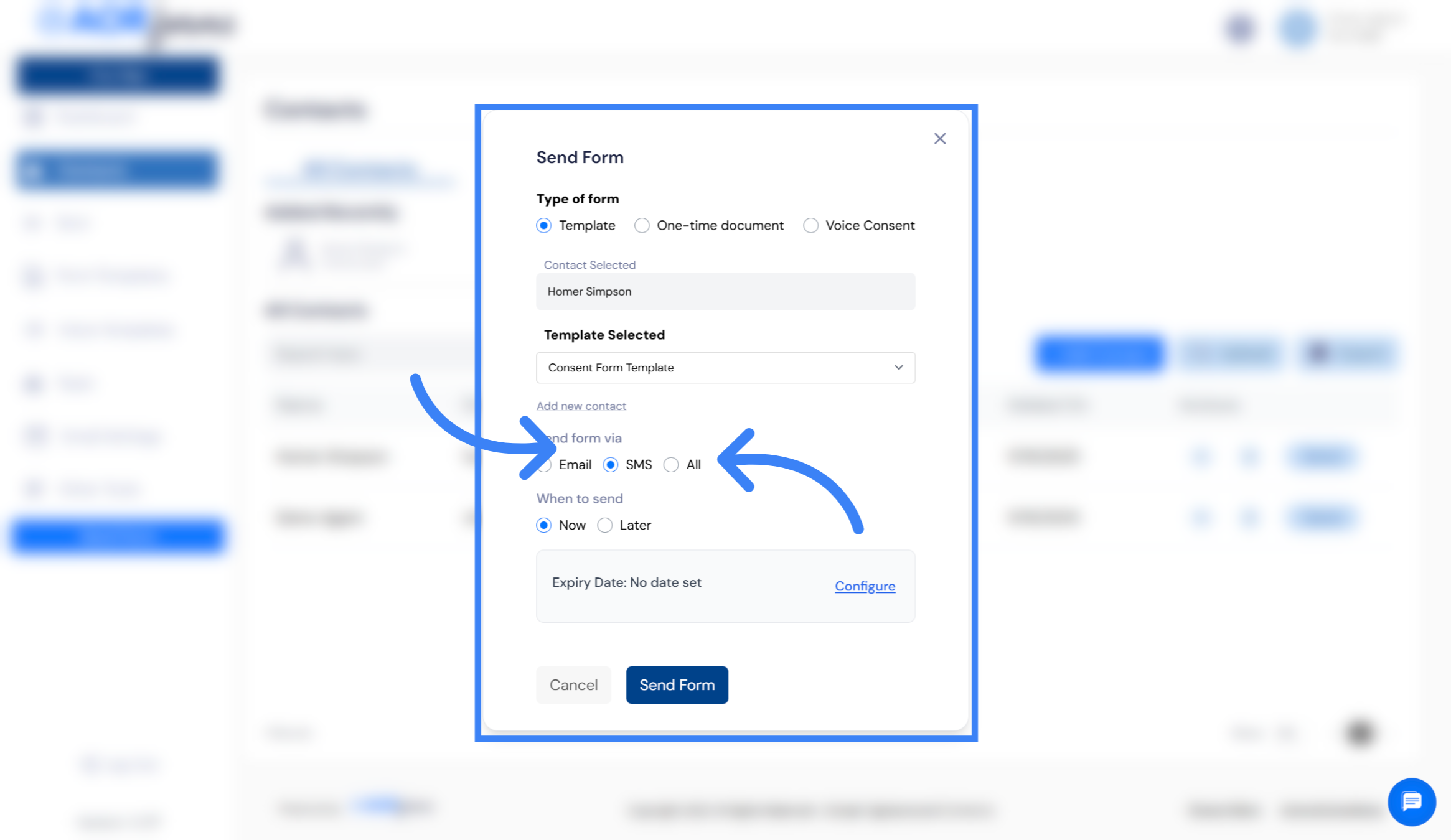
2. Outside Business Hours Prompt
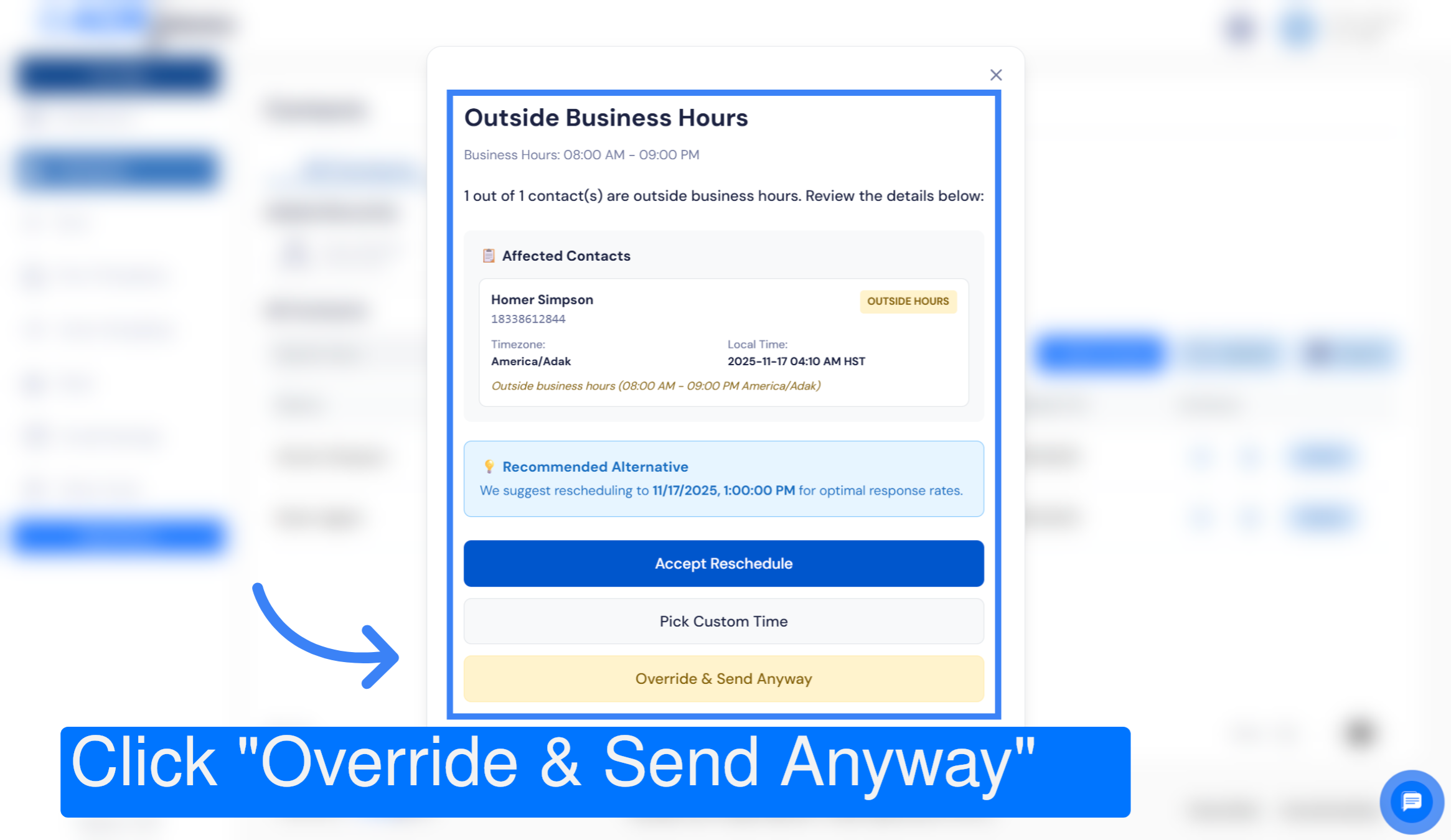
If you have chosen to send a form to the recipient outside of business hours in their time zone, you will be prompted to reschedule sending.
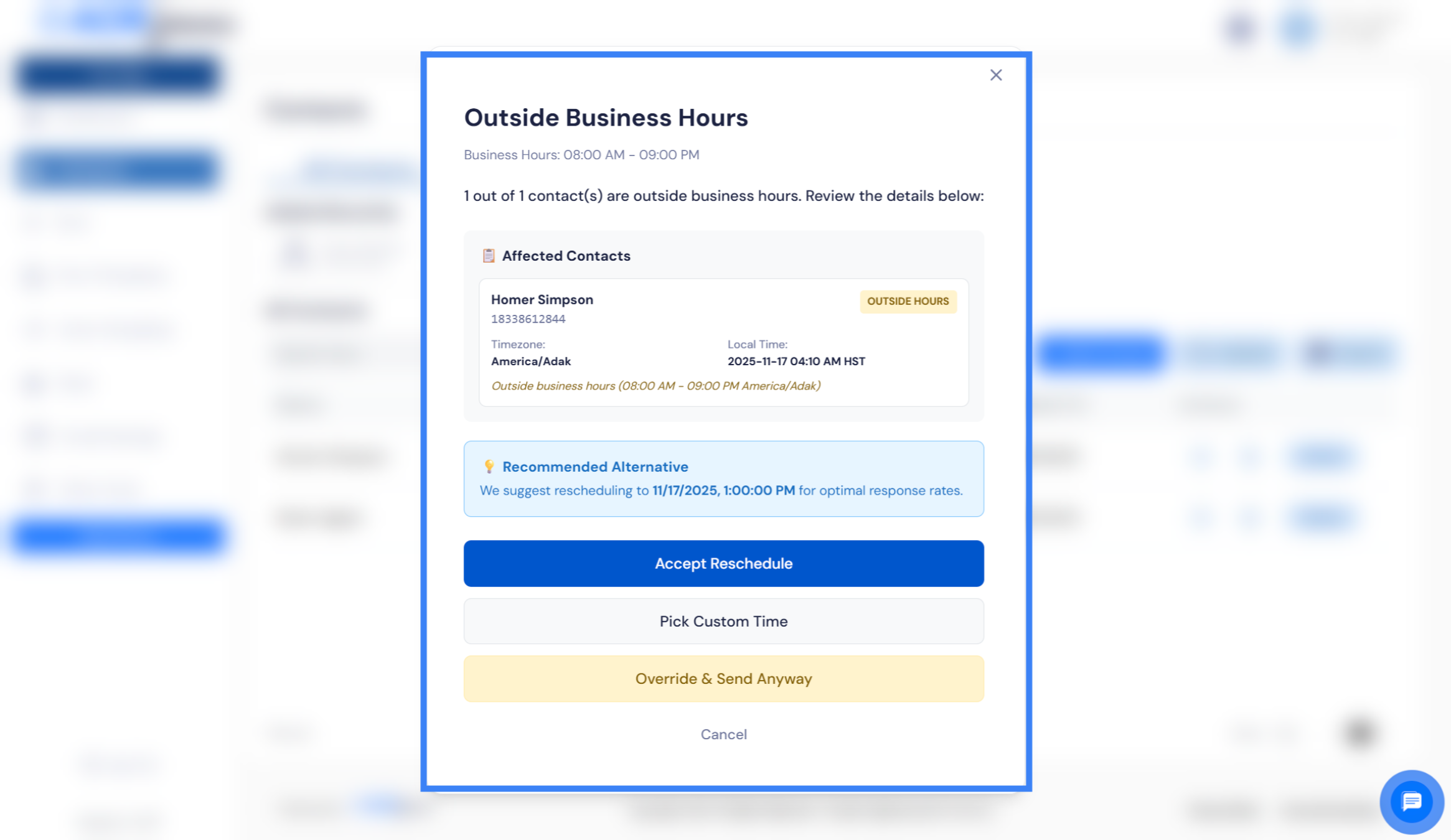
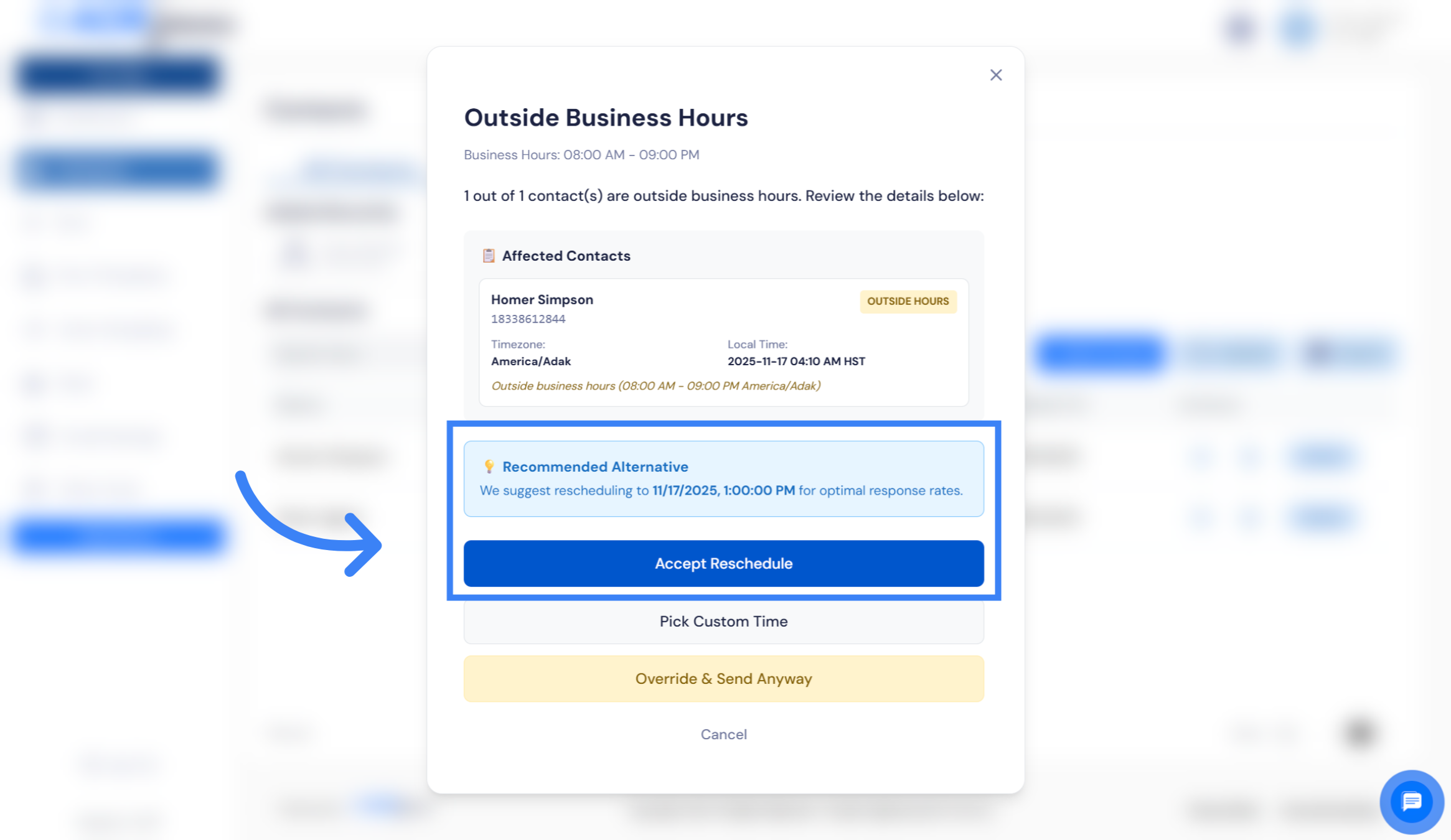
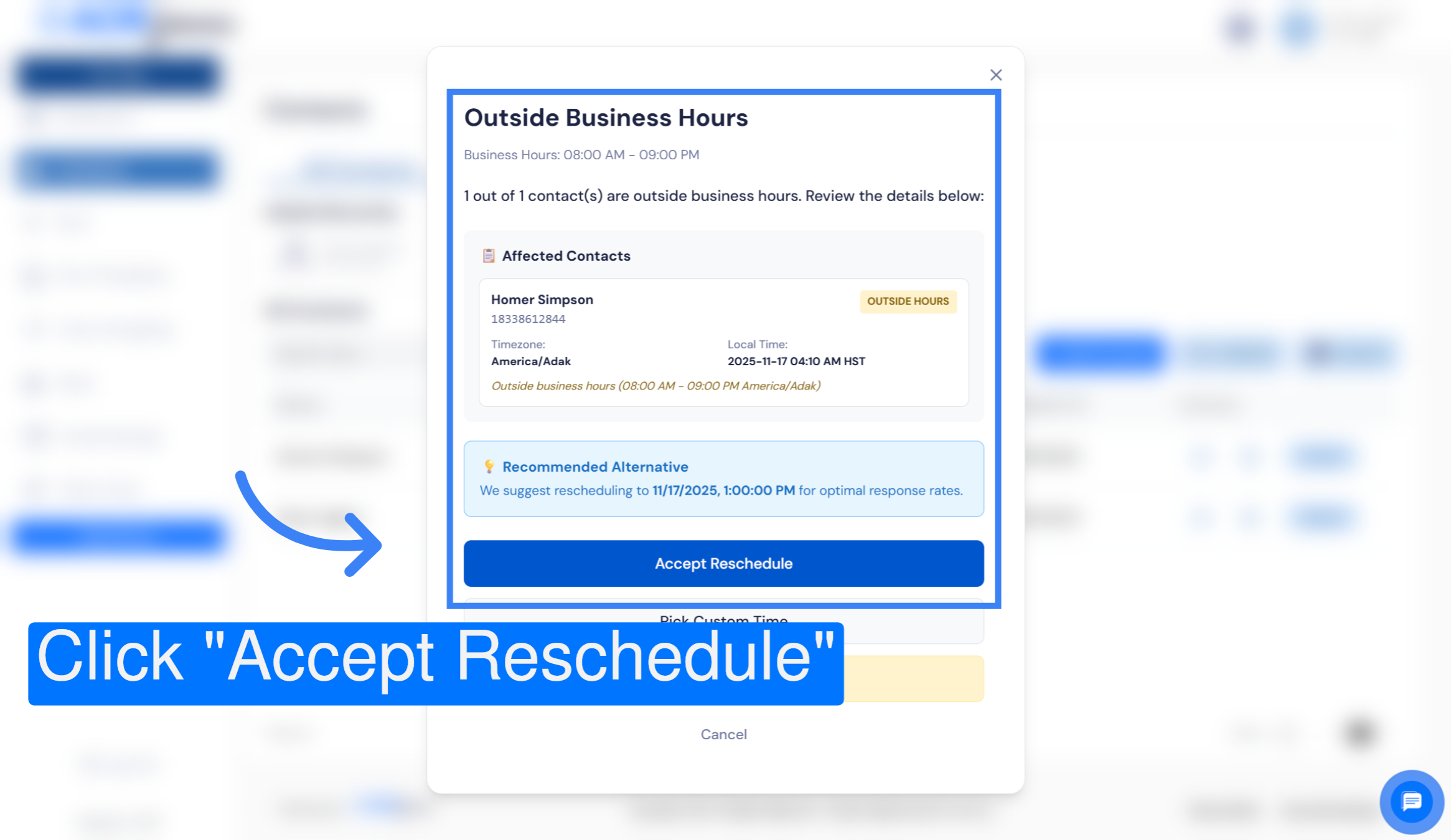
3. Accept Reschedule Prompt
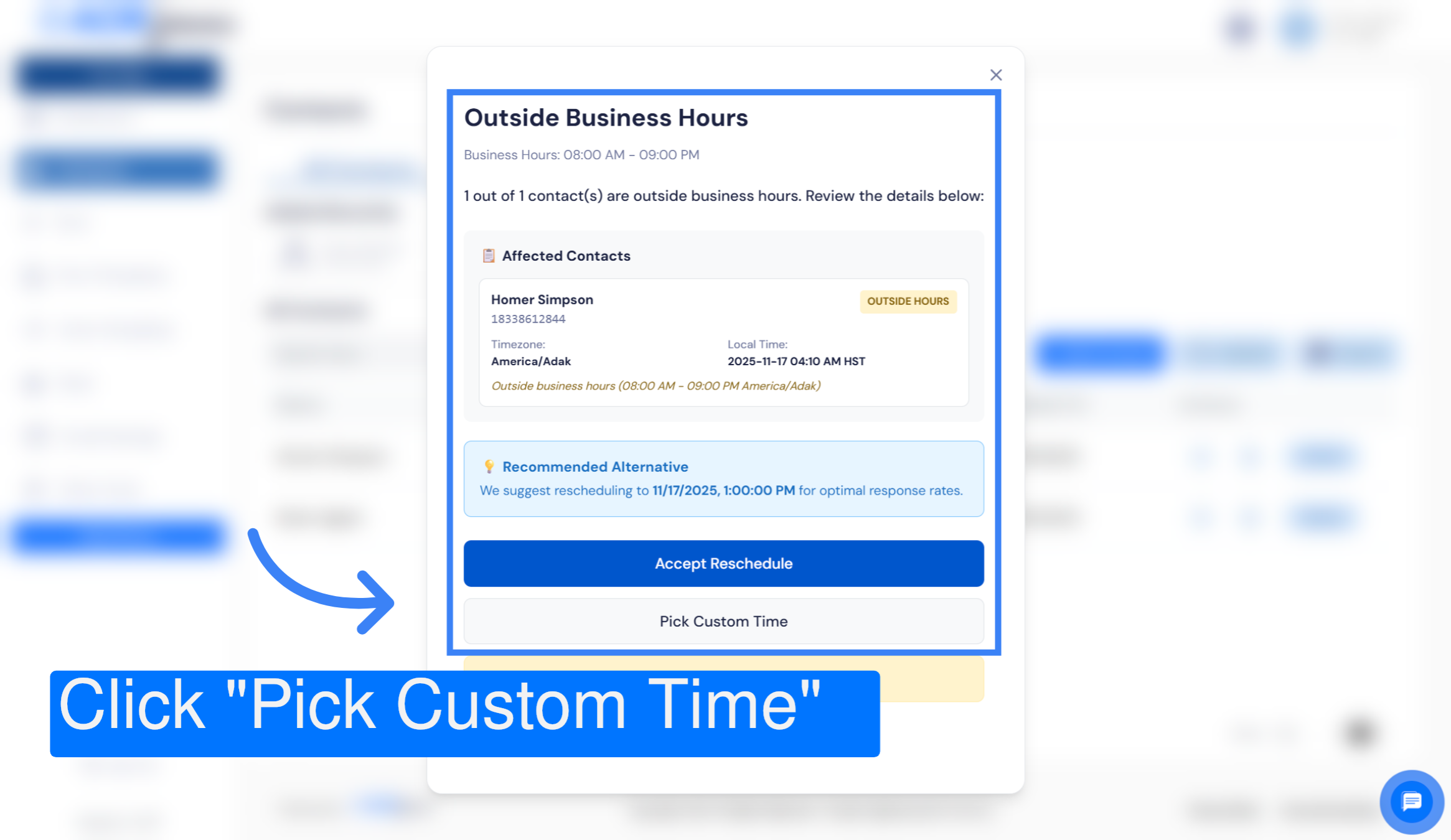
You will be presented with a recommended alternate sending time which will be scheduled for the next business hour. Click Accept Reschedule to confirm the new SMS sending time.
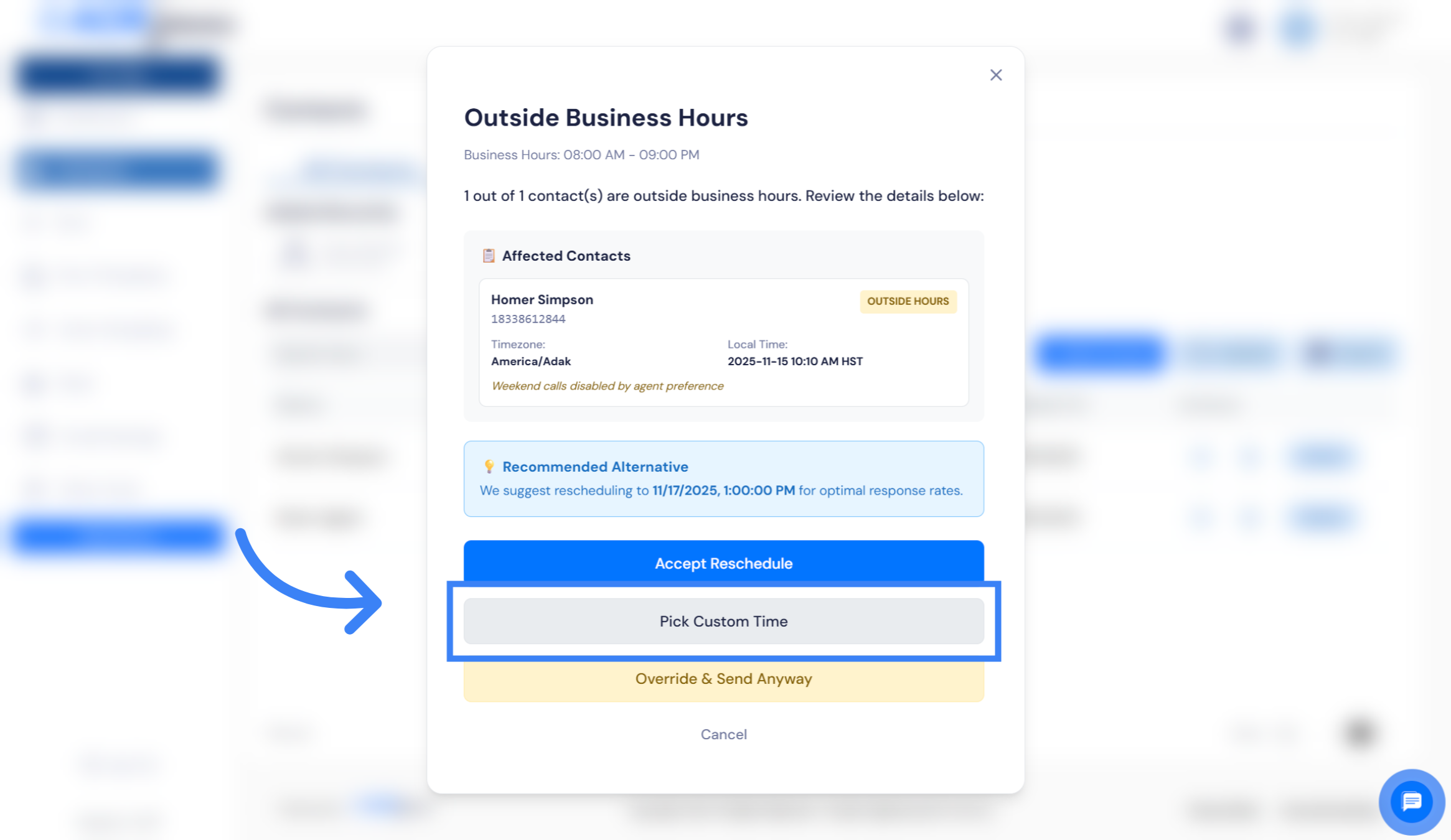
4. Choose Custom Time Option
Or click "Pick Custom Time" to schedule when the SMS should be sent.
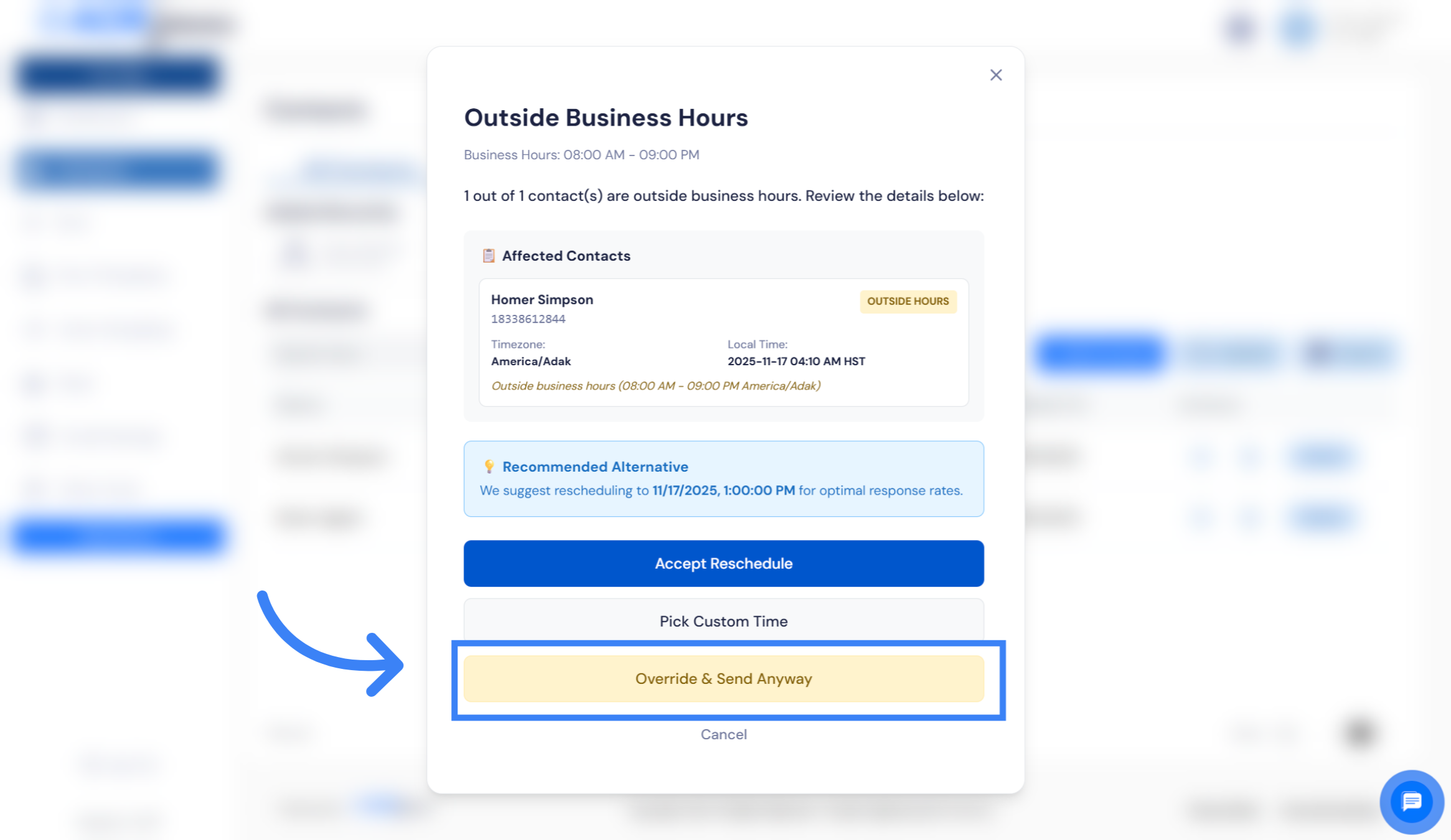
5. Override & Send Anyway
Or click Override & Send anyway to send the SMS immediately even though you will be sending outside of TCPA restricted business hours.
6. Accept Reschedule Prompt
When you choose to Accept Reschedule the message will be scheduled to send at the next business hour.
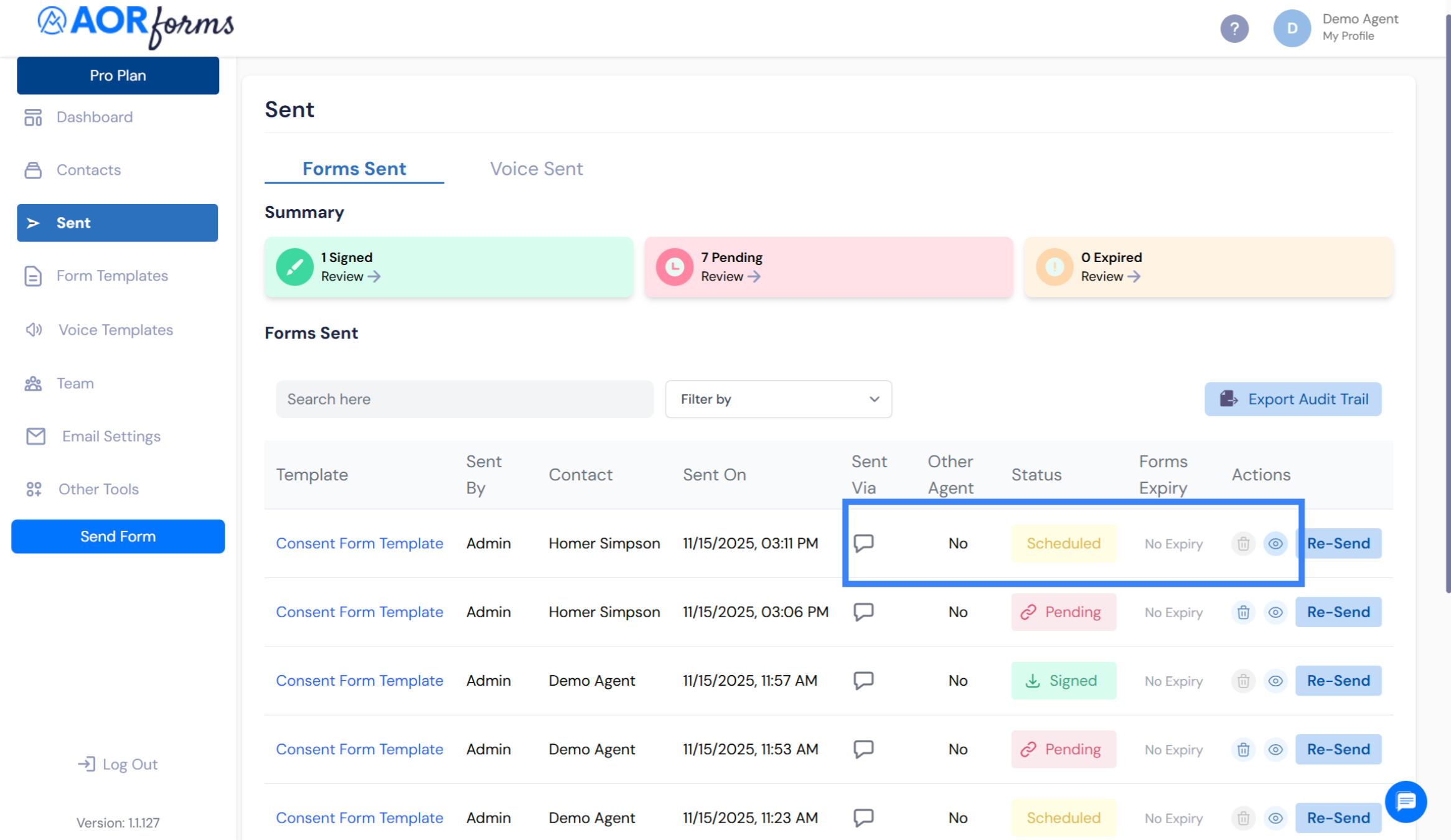
7. SMS Send is Scheduled
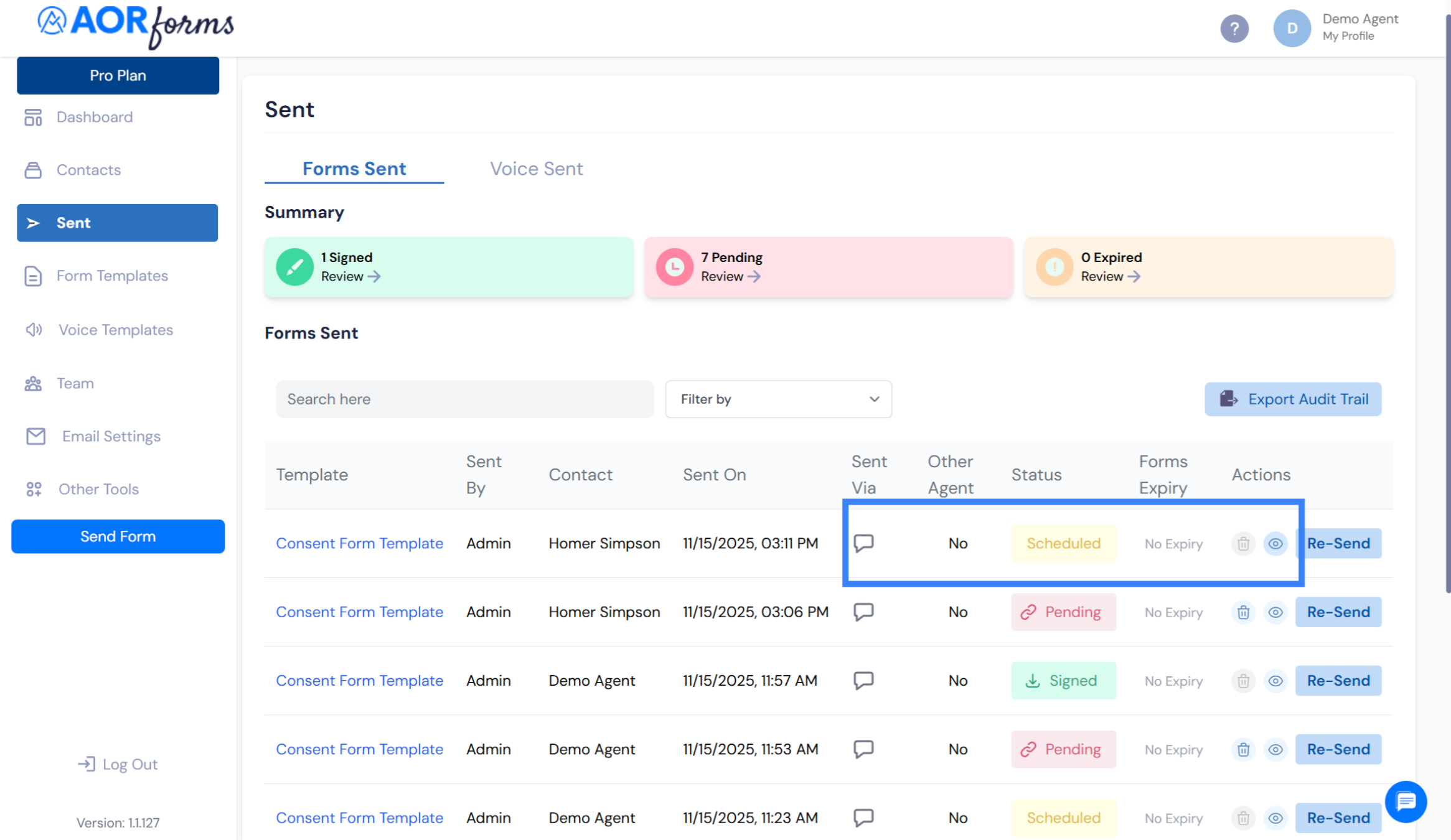
In your list of Forms Sent, the SMS message will have a status of "Scheduled
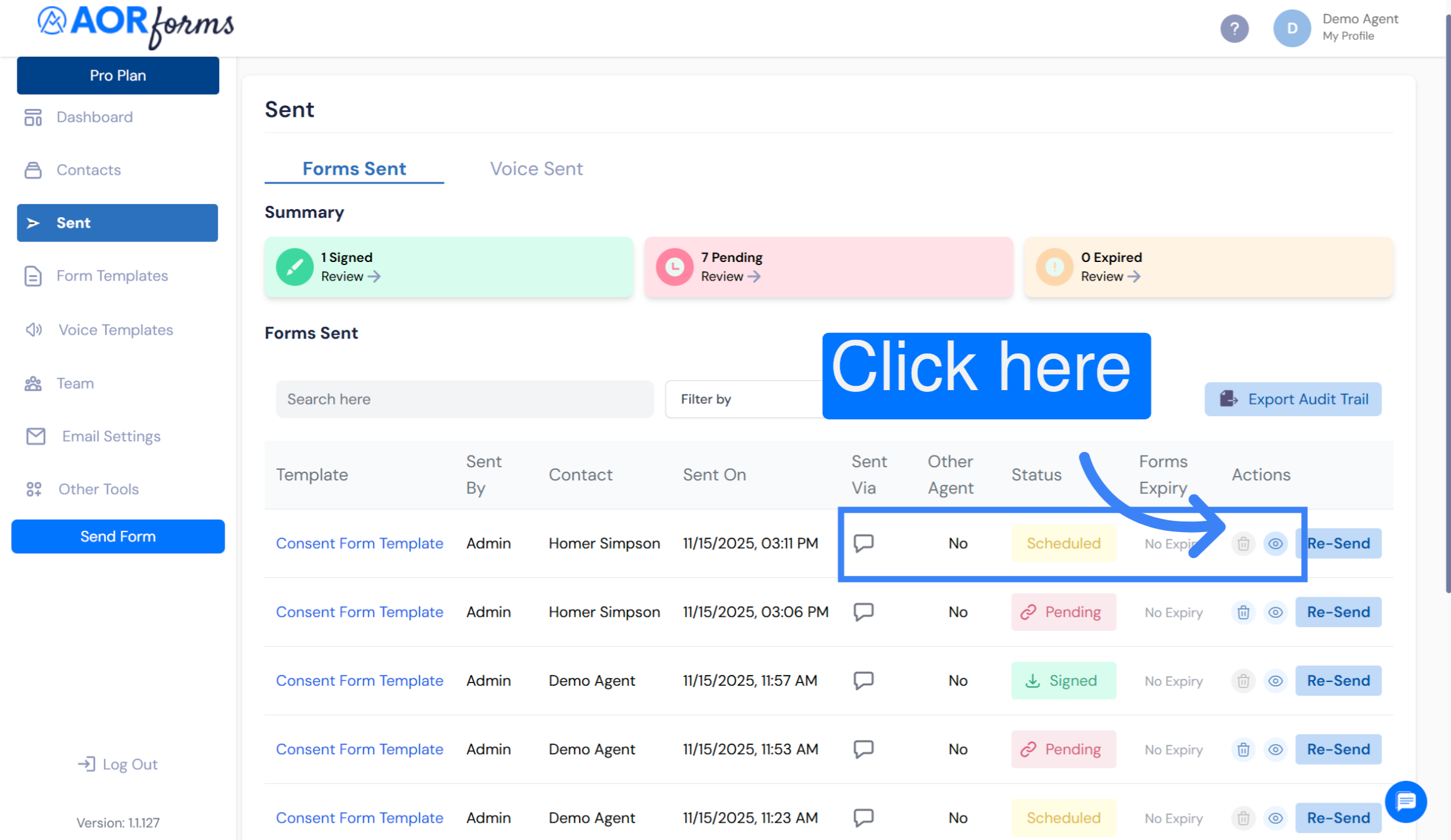
8. View scheduled time
To view when the message is scheduled to send, click on the eyeball icon.
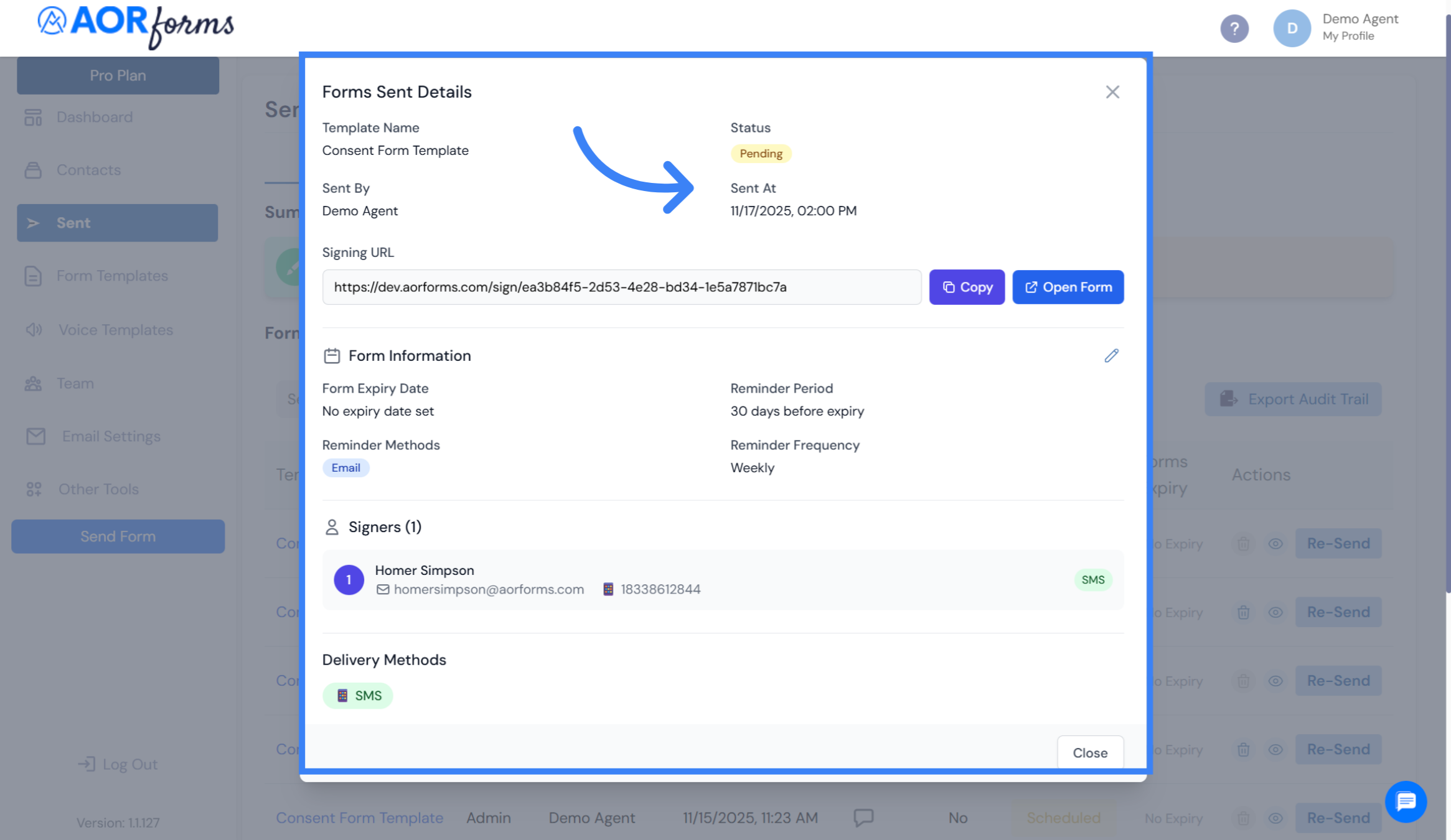
9. Form Sent Details shows scheduled time
The Form Sent Details will show the date and time that the message is scheduled to send.
10. Pick Custom Time
Instead of sending at the recommended scheduled time of the next business hour, you can choose another date and time within business hours. Click "Pick Custom Time"
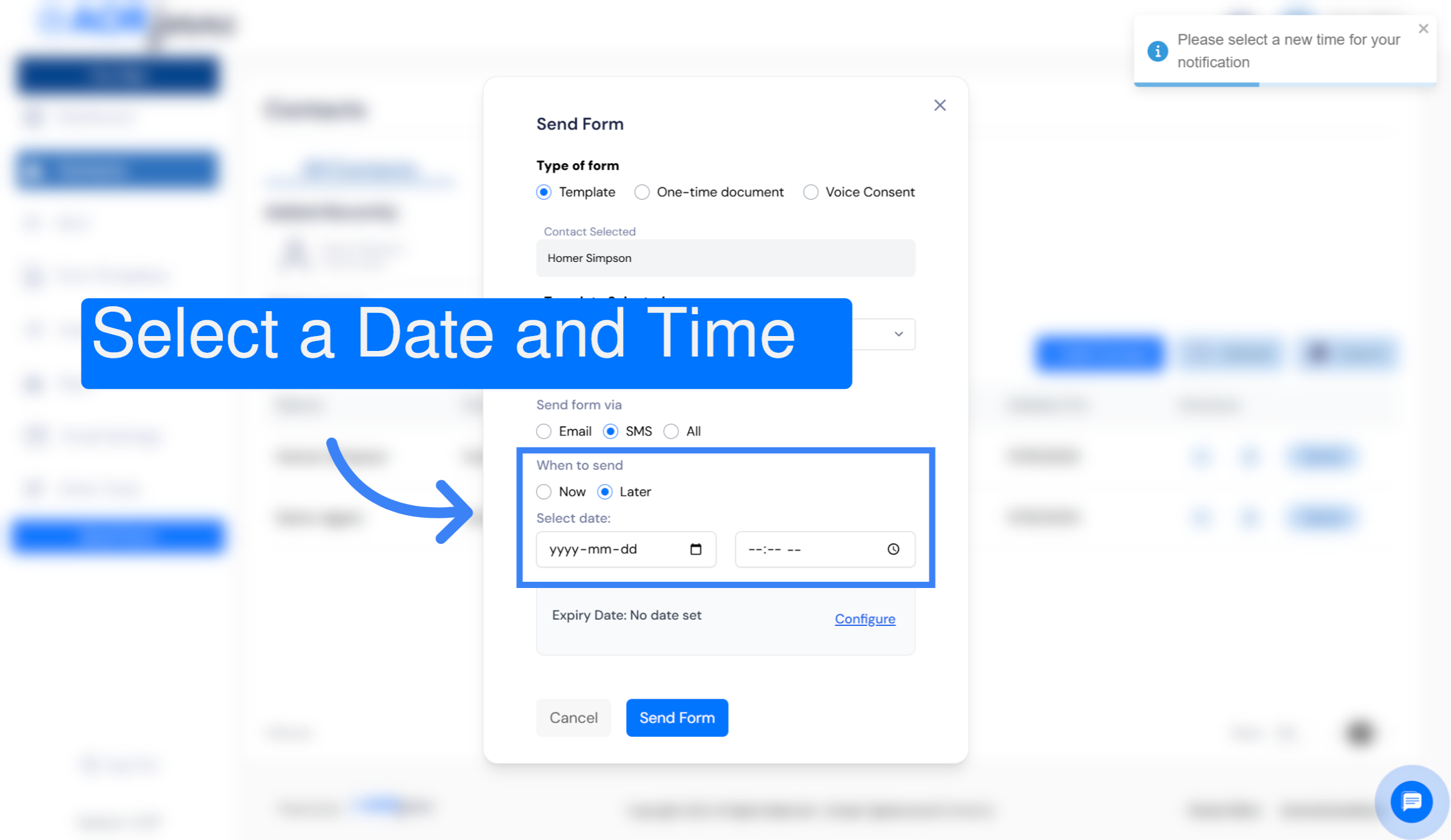
11. Open Date Selector
Click Later and choose the specific date and time for sending the SMS.
12. SMS Send is scheduled
Once again, the message status will show Scheduled in your Forms Sent list.
13. Override & Send Anyway
Click Override & Send Anyway if you have permission from the recipient to send them a message outside of business hours.
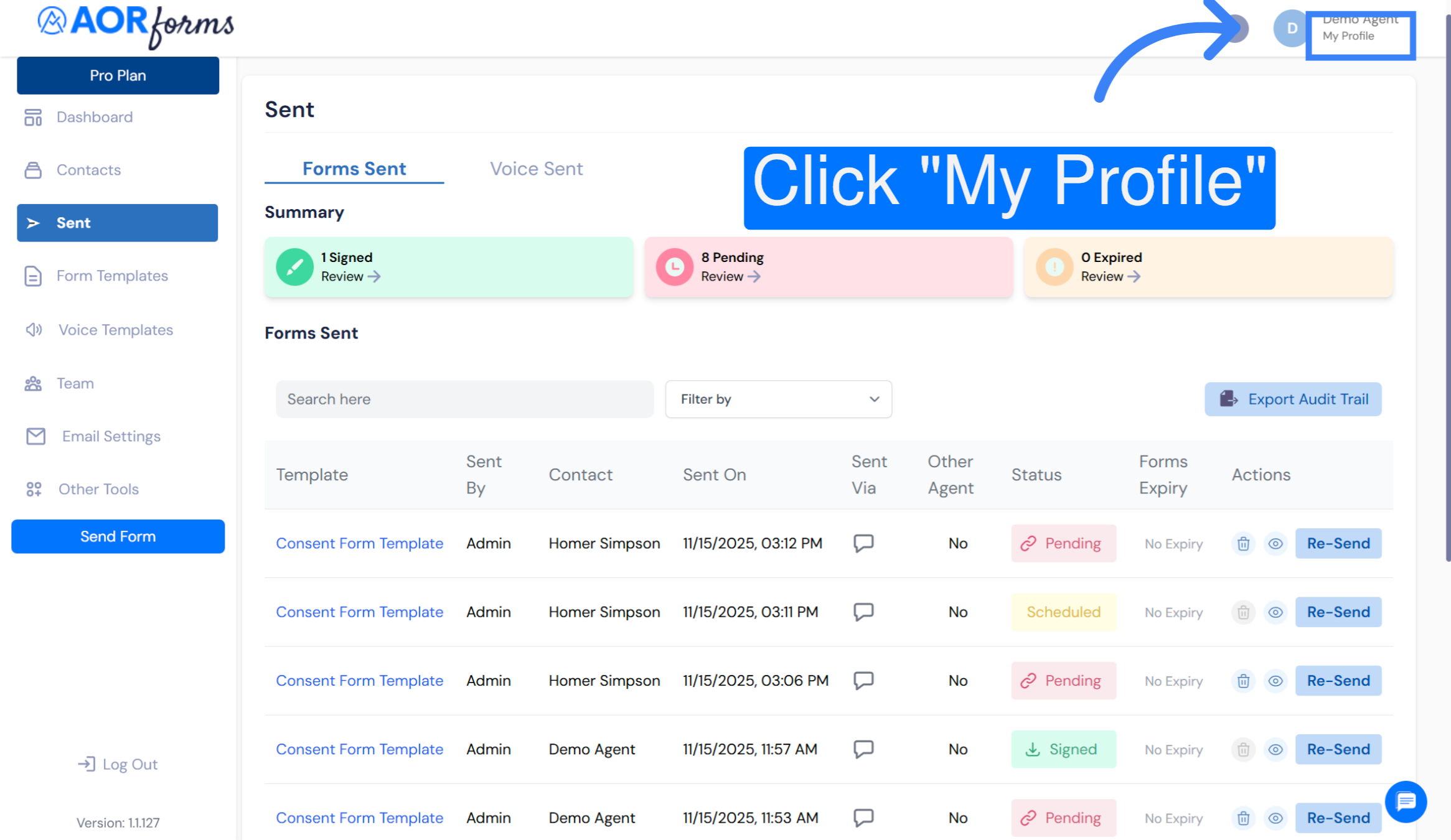
14. Open User Profile
For businesses that need to reach customers during weekends for critical updates, you can Allow Sending SMS and Voice Consent Calls on Weekends. Click My Profile to access your user settings and preferences.
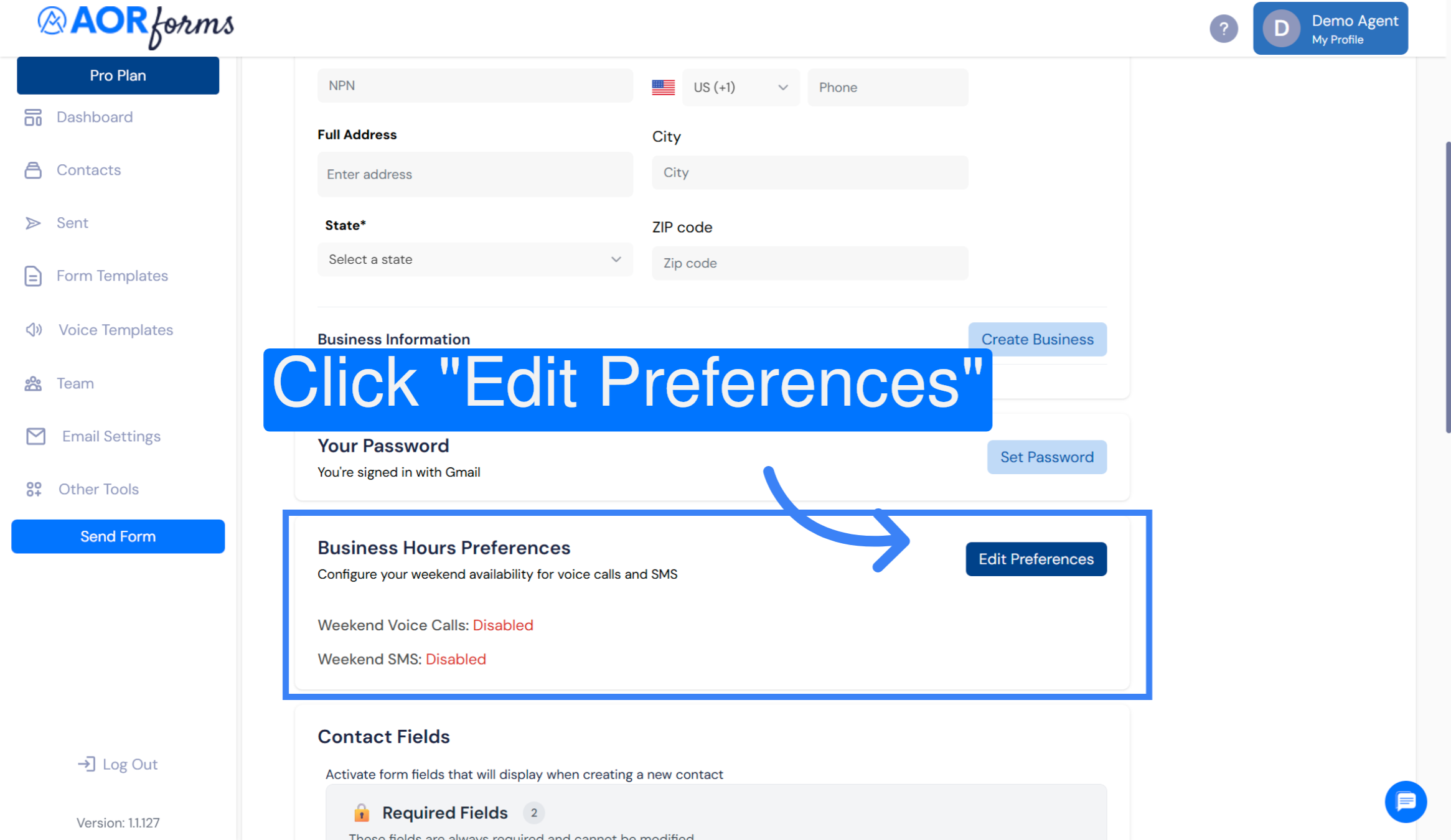
15. Edit User Preferences
Click Edit Preferences to modify your SMS sending and notification settings.
16. Access Preference Settings
Click here to open the detailed preference settings for SMS overrides.
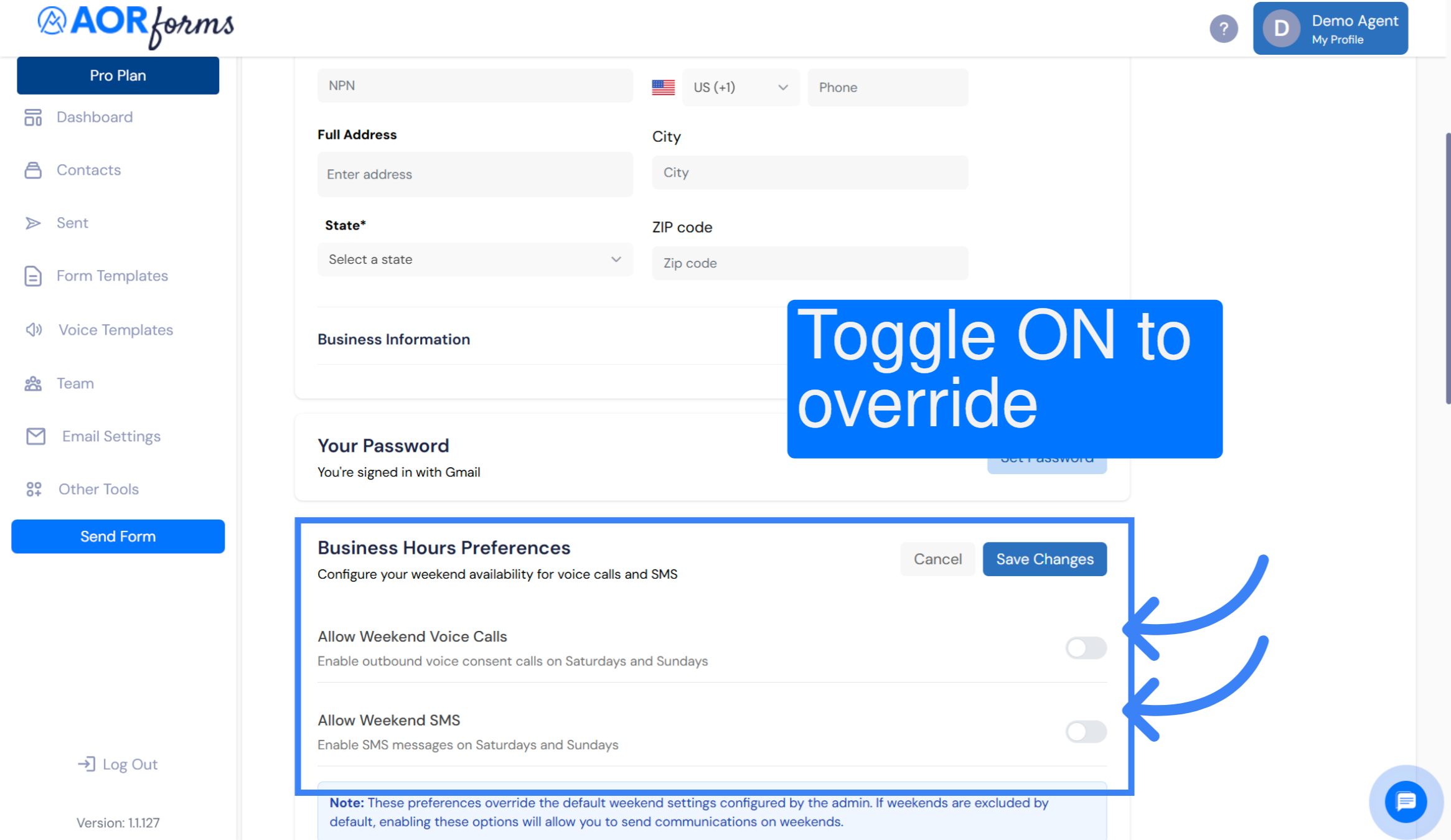
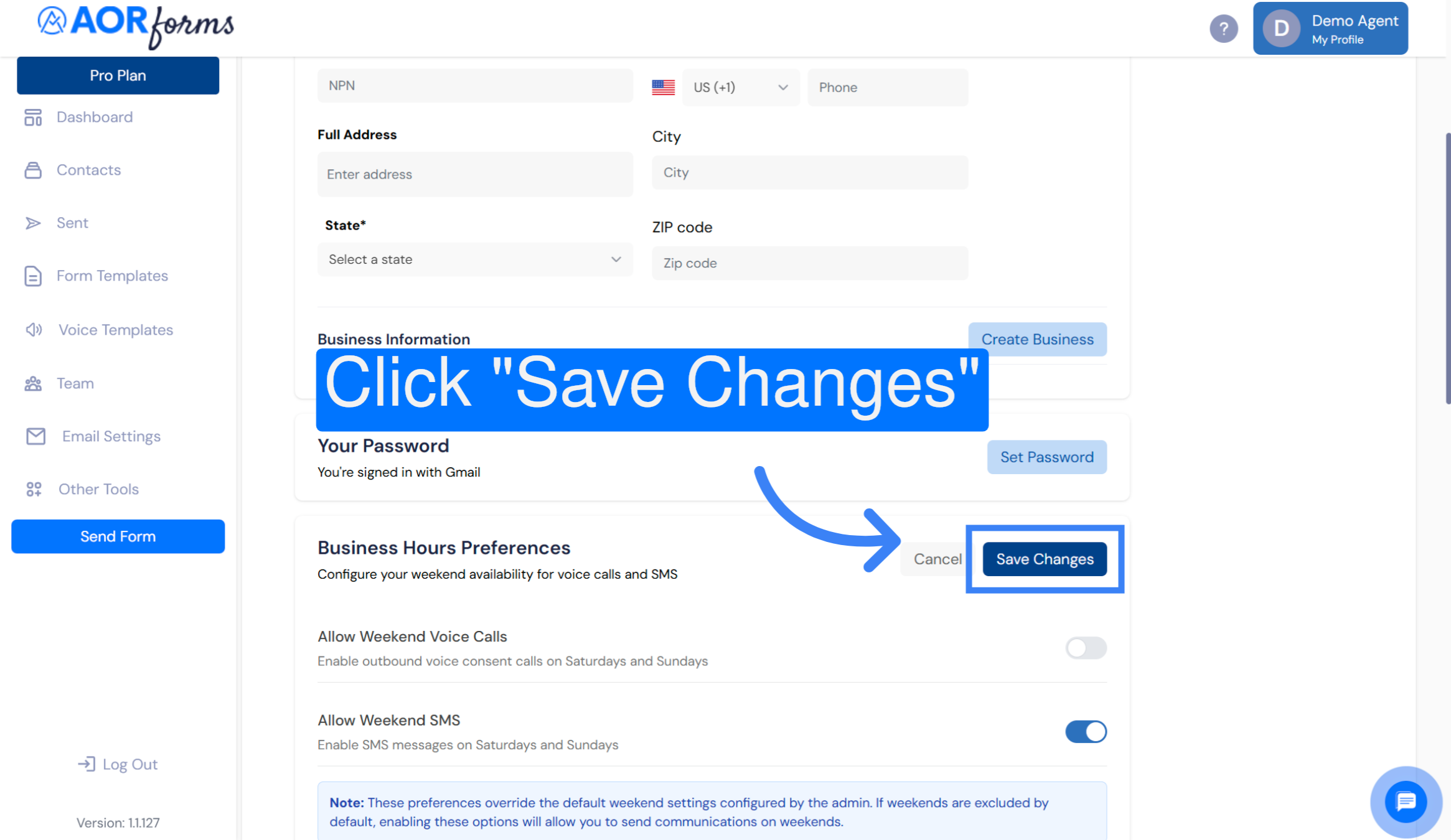
17. Save Preference Changes
Click Save Changes to apply and save your updated SMS override preferences. These features reduce risk, protect your reputation, and help you avoid costly penalties. Plus, they show your customers that you respect their time and privacy.
You have successfully configured SMS sending to override business hour restrictions by scheduling messages, confirming consent, and enabling override settings. This ensures your SMS messages are sent according to your specified preferences regardless of business hours. Remember, TCPA compliance isn’t optional—it’s essential. With AORforms’ new scheduling safeguards and override flexibility, you can focus on growing YOUR business while we offer tools to help YOU stay compliant.
Did this answer your question?


